
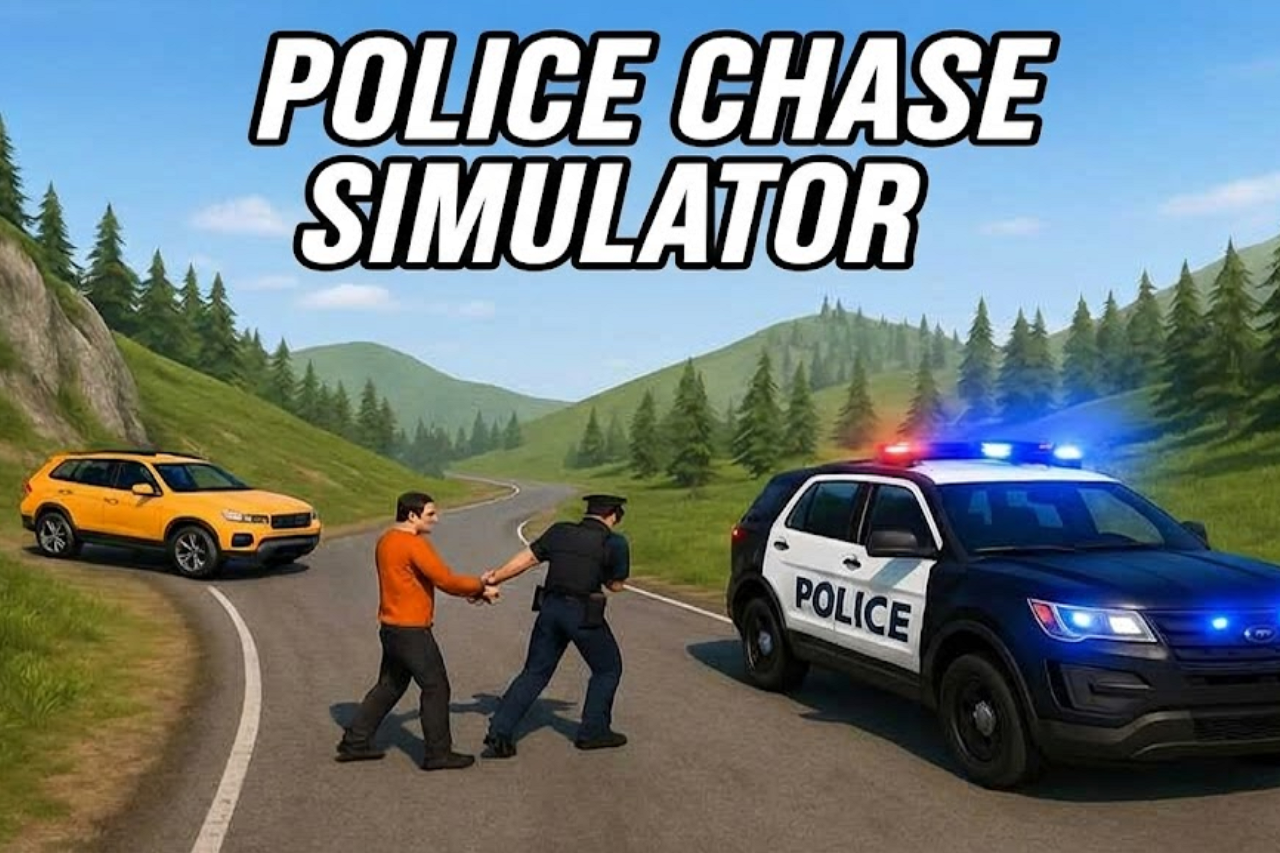


About Police Chase Simulator
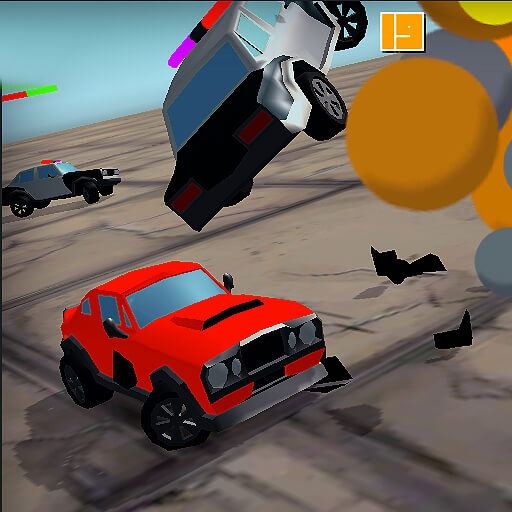
Police Chase Simulator gives driving experiments as much attention as pursuits. You can take on structured tasks or explore a sandbox containing different environments and vehicle-testing opportunities. Ramps, impacts, and changing terrain make it possible to focus on how a car behaves rather than only where it finishes.
Vehicle damage, tuning, and a time-slowing control shape those experiments. A chase demands route decisions under pressure; an open test session gives you room to inspect the same manoeuvre. Maps range from city and countryside to a low-gravity moon setting, so the conditions are part of the challenge.
How to Play Police Chase Simulator
Choose an available mission or sandbox setting and drive with WASD. Use the handbrake and Nitro when the route permits, experiment with time slowdown, and reset or restore the vehicle when you want to continue testing.
- Choose a mission or sandbox environment and begin driving with WASD.
- Try the selected route, stunt, or pursuit, using Nitro or slow time where useful.
- Reset the car’s position or restore its condition as needed before continuing the experiment.
Controls & Timing
Testing one variable
Changing the car, map, and approach at once makes a result difficult to interpret. Repeat a familiar manoeuvre with one change if you want to understand the vehicle response.
Position versus condition
Resetting where the car sits and restoring its damage are separate controls. Use the appropriate action rather than assuming a position reset also repairs every effect of a crash.
Controls
| Input | Action | When to use |
|---|---|---|
| WASD | Drive and steer. | While following the route and avoiding obstacles. |
| Space | Apply the handbrake. | When the route requires a slower or corrected approach. |
| Shift | Use Nitro. | On a clear approach with room to continue. |
| C | Change the camera view. | When checking the surrounding route. |
| R | Reset the vehicle’s position. | When recovering the vehicle or its condition. |
| K | Restore the vehicle’s condition. | When recovering the vehicle or its condition. |
| B | Slow down time. | When examining a manoeuvre or impact. |
High Score Tips
- Learn the map before a full-speed pursuit. Identify open routes and obstacles while there is time to experiment.
- Give Nitro a clear destination. Extra speed is useful when you know where the car will go afterward.
- Use slow time to inspect a manoeuvre. Watch the relationship between input, vehicle angle, and impact instead of repeating the same crash blindly.
- Adjust to each environment. A low-gravity setting should not be approached as if its jumps behave like those on a city street.
Key Features
- Flexible objectives. Mission driving alongside an open sandbox.
- Different conditions. Multiple environments with different conditions.
- Vehicle experiments. Vehicle damage, tuning, and visual customisation.
- Recovery tools. Separate time-slowing, position-reset, and repair controls.
Frequently Asked Questions
How do I recover a stuck or damaged vehicle?
R resets the vehicle’s position, while K restores its condition. These are separate actions, so choose the one that addresses the current problem.
Which key slows time?
B activates time slowdown. Use it to observe a stunt or collision more closely and plan your next adjustment.
Do I have to follow missions all the time?
The sandbox gives you room to experiment. Choose an available free-driving setting when you want to test vehicles or props without focusing on a mission.
Is multiplayer available?
Open the mode menu to see whether multiplayer and connection options are available.